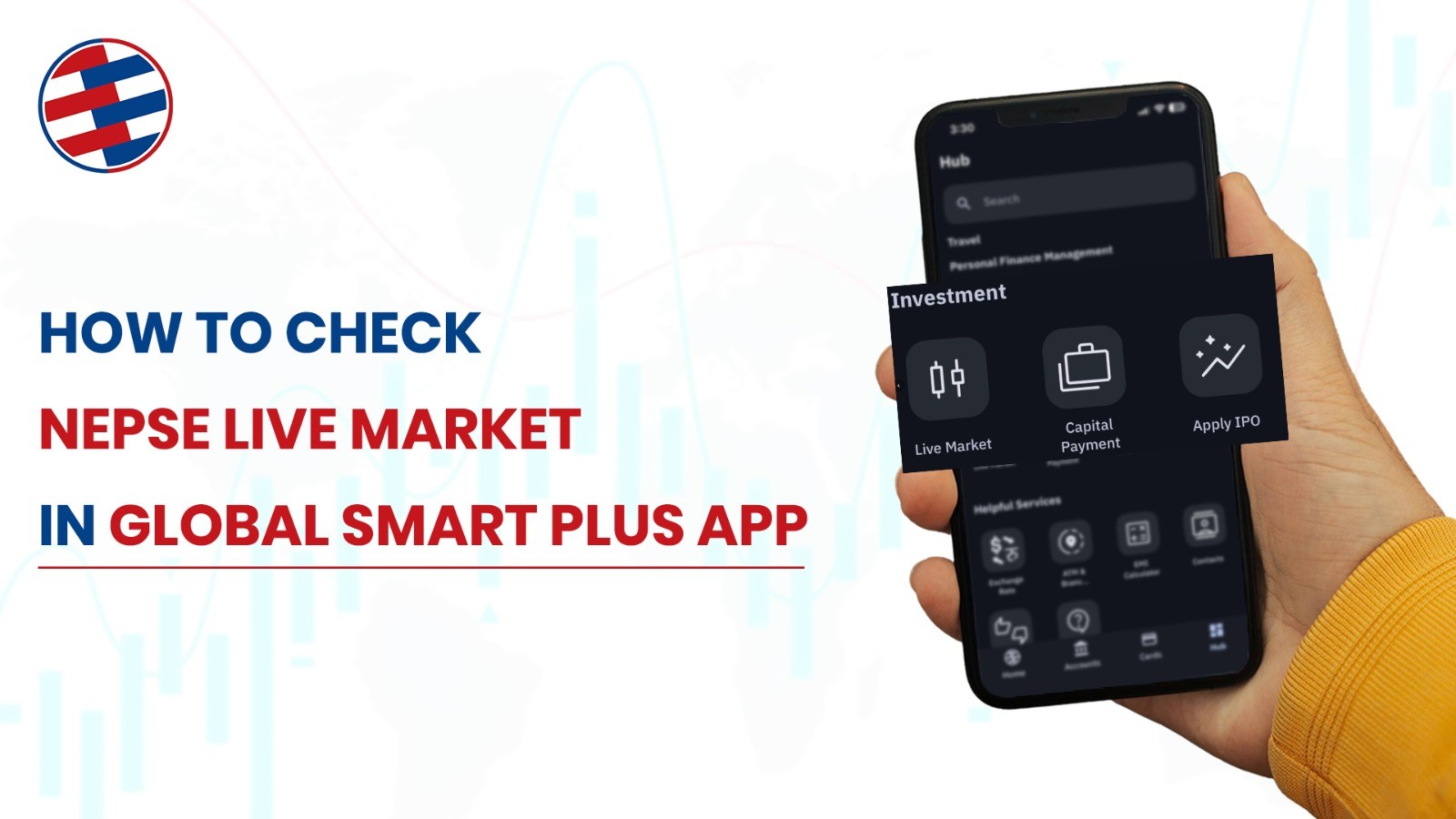
Global IME Bank has made it easy for customers to access stock market information by integrating a NEPSE Live Market feature directly into the Global Smart Plus mobile banking app.
This integration eliminates the need to use multiple apps or constantly refresh websites to track your investments. Whether you’re a seasoned investor managing a diverse portfolio or a beginner exploring the stock market, having instant access to live market data at your fingertips transforms how you make investment decisions.
Who Can Use This Feature?
The NEPSE Live Market feature on Global Smart Plus is available to all Global IME Bank customers who have downloaded and registered on the mobile banking app. You don’t necessarily need a DEMAT account or active trading account to view market data—the feature is accessible to anyone interested in monitoring Nepal’s stock market.
What You Need Before Starting
Before diving into the NEPSE Live Market feature, ensure you have the following ready:
1. Global Smart Plus App Installation
- Download the Global Smart Plus app from Google Play Store (Android) or Apple App Store (iOS)
- Ensure you have the latest version installed to access all new features
2. Mobile Banking Registration
- Complete the mobile banking registration process
- Set up your login credentials (username/password or biometric authentication)
Once these prerequisites are met, you’re ready to explore the comprehensive NEPSE Live Market features within Global Smart Plus.
Step-by-Step Guide: How to Check NEPSE Live Market in Global Smart Plus
Follow this detailed tutorial to access and navigate the NEPSE Live Market feature in your Global Smart Plus app:
Step 1: Launch the Global Smart Plus App
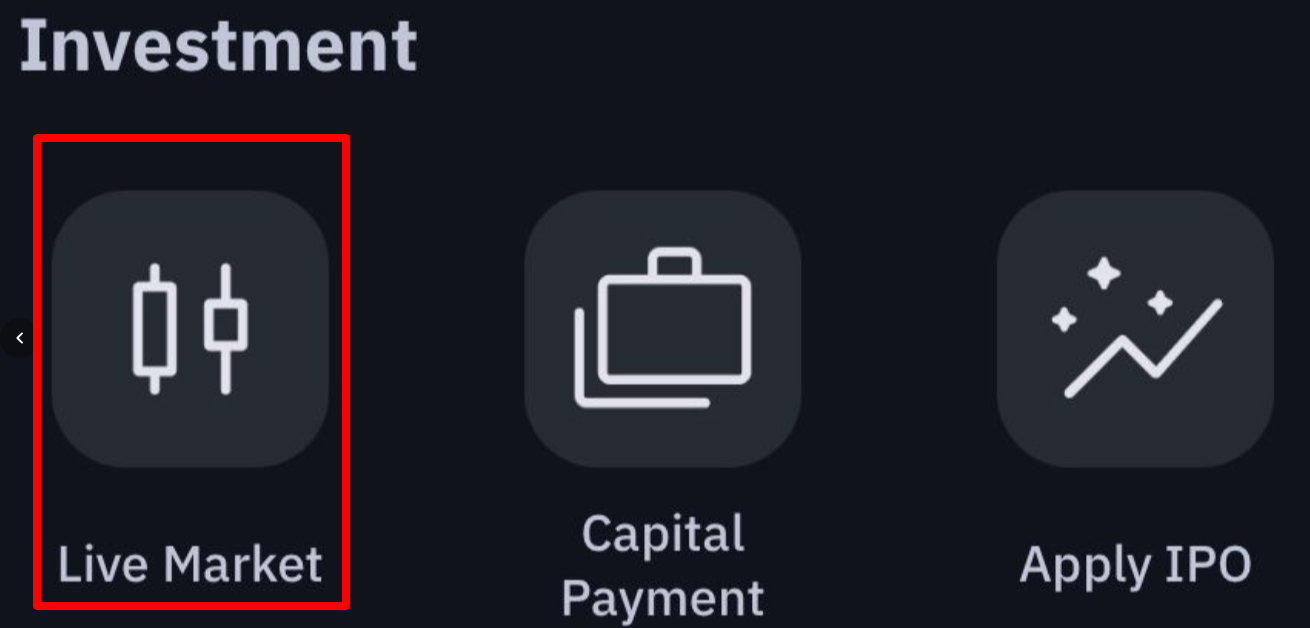
Step 2: Navigate to the Live Market Section
- Once logged in, you’ll see the main dashboard with various banking services
- Look for the “Live Market” option in the hub menu.
Step 4: Explore the Market Dashboard
- Upon entering, you’ll immediately see the current NEPSE Index displayed prominently
- The dashboard shows today’s index value, change percentage, and directional indicator (green for up, red for down)
- Scroll to view different market categories and stock listings
Step 5: View Individual Stock Information
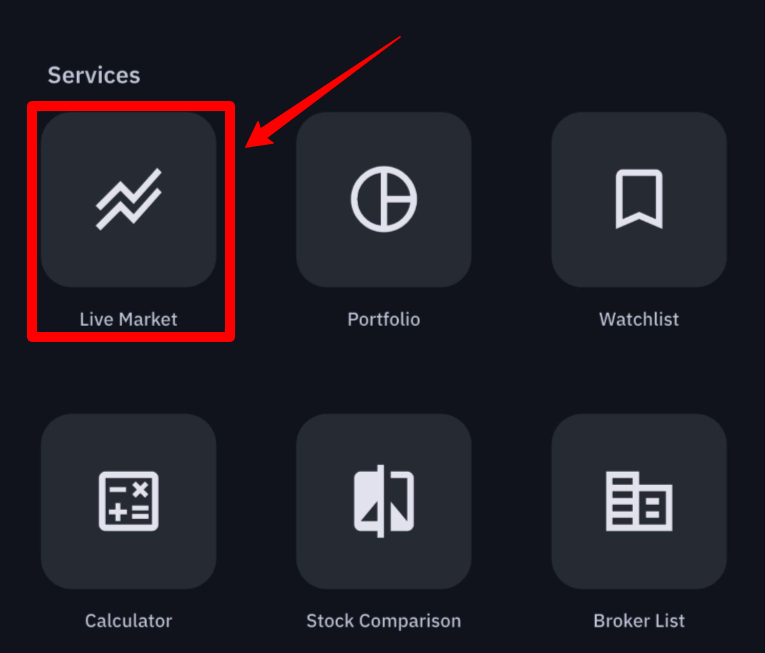
- Click on the Live Market Icon on the services section.
- Tap on any stock symbol to view detailed information
- Check the current trading price (LTP – Last Traded Price)
- View the day’s opening price, high, low, and closing price
- Observe trading volume and turnover data
What’s New in the NEPSE Live Market Section
Global Smart Plus has significantly enhanced the Live Market feature with several powerful tools that transform it from a simple market viewer into a comprehensive investment management platform.
Portfolio Management
The new Portfolio Management tool is a game-changer for investors tracking multiple stocks:
- Step 1: Open the Portfolio section and tap the “+ Add New Portfolio” button at the bottom of the screen.
- Step 2: Enter a name for your portfolio in the “Portfolio Name” field and tap “Continue”.
- Step 3: Choose how you want to add your stocks:
- Tap “Add a Stock Transaction” to enter stock details manually (stock symbol, quantity, and purchase price)
- Or tap “Import All” to upload your transaction files from Mero Share & TMS
- Step 4: If importing, tap “Upload Meroshare File” or “Upload TMS File” to upload your exported transaction files, then tap “Continue”.
- Step 5: Once your stocks are added, view your portfolio summary showing:
- Total Investment
- Current Value
- Today’s Profit and Loss
- All Time Profit and Loss
- Realized and Unrealized Profit and Loss
Create Watchlist
The Watchlist feature allows you to monitor stocks of interest without owning them.
How to Add Stocks to Your Watchlist
- Step 1: Open the Watchlist section in the app.
- Step 2: Tap the “+ Add New” button located at the bottom right corner of the screen.
- Step 3: Use the “Search Stocks” bar at the top to find specific stocks, or scroll through the list of available stocks.
- Step 4: Select the stocks you want to add by tapping the circular selection icon next to each stock name. A checkmark will appear when selected.
- Step 5: Once you’ve selected all desired stocks, tap the “Done” button at the bottom of the screen.
- Step 6: You’ll see a confirmation message: “Stocks added to watchlist successfully.”
How to Delete Stocks from Your Watchlist
- Step 1: Go to your Watchlist where all your saved stocks are displayed.
- Step 2: Swipe left on the stock you want to remove from the watchlist.
- Step 3: A purple button with a minus (-) icon will appear on the right side of the stock entry. Tap it.
- Step 4: A confirmation dialog will pop up asking “Delete Item?” with the message “This stock will be removed from this watchlist.”
- Step 5: Tap “Delete” to confirm, or tap “Cancel” if you changed your mind.
- Step 6: You’ll see a confirmation message: “Stock removed from watchlist successfully.”
Stock Calculator
After entering your transaction details in the Shares Calculator, you’ll receive a complete breakdown of your stock transaction costs:
Calculation Results Include:
- Cost Per Share – The actual price you’ll pay or receive per share after all fees
- DP Fee – Depository Participant charges for maintaining your demat account
- SEBON Commission – Securities Board of Nepal regulatory fee on your transaction
- Broker Commission – Your broker’s service charge for executing the trade
- Share Amount – The base value of shares before any fees (Units × Purchase Price)
- Total Payable Amount – The final amount you need to pay (for buying) or will receive (for selling) after all charges
Stock Comparison
This powerful analytical tool allows side-by-side comparison of multiple stocks:
Comparison Parameters:
- Current price and price changes
- Trading volume and turnover
- 52-week high and low ranges
- Market capitalization
- Key financial ratios (if available)
Strategic Applications:
- Sector Analysis: Compare banks, hydropower companies, or insurance firms to identify sector leaders
- Peer Comparison: Evaluate similar companies to choose the best investment opportunity
- Diversification Decisions: Assess different stocks across sectors to balance your portfolio
How to Compare:
- Select “Stock Comparison” from the Live Market menu
- Add 2-4 stocks you want to compare (most apps limit to 4 for clarity)
- View the comparison table displaying key metrics side-by-side
- Make more informed decisions based on comprehensive data
Broker List
Access to a complete broker directory within the app streamlines your trading process:
Information Provided:
- Complete list of all SEBON-registered brokers
- Broker codes for transaction purposes
Conclusion: Stay Informed with Global Smart Plus Live Market Feature
The integration of NEPSE Live Market into Global Smart Plus represents a significant milestone in digital financial services for Nepal. Global IME Bank has effectively eliminated the barrier between banking and investment management, creating a unified platform where customers can manage their finances holistically.
Frequently Asked Questions (FAQs)
Is the NEPSE live market feature free in Global Smart Plus?
Yes, absolutely! The NEPSE Live Market feature is completely free for all Global IME Bank customers who use the Global Smart Plus app.
How often is the market data updated?
Market data in Global Smart Plus updates in near real-time during NEPSE trading hours (Sunday to Thursday, 11:00 AM to 3:00 PM Nepal Time).
Can I trade stocks directly from the Global Smart Plus app?
No, the Global Smart Plus app currently does not support direct stock trading.
What is the NEPSE trading time in Nepal?
NEPSE’s regular trading session runs from 11:10 AM to 3:00 PM, Sunday to Thursday.
Do I need a DEMAT account to view live market data?
No, you do not need a DEMAT (dematerialized) account to view NEPSE live market data on the Global Smart Plus app.
Can I view the NEPSE live market outside Nepal?
Yes, you can access the NEPSE Live Market feature in Global Smart Plus from anywhere in the world
How accurate is the live market data on Global Smart Plus?
The live market data displayed on Global Smart Plus is highly accurate as it’s pulled directly from official NEPSE data feeds.
Can I compare multiple stocks at once?
Yes, Global Smart Plus includes a Stock Comparison feature that allows you to analyze two stocks side-by-side, making it easier to make informed investment decisions.